
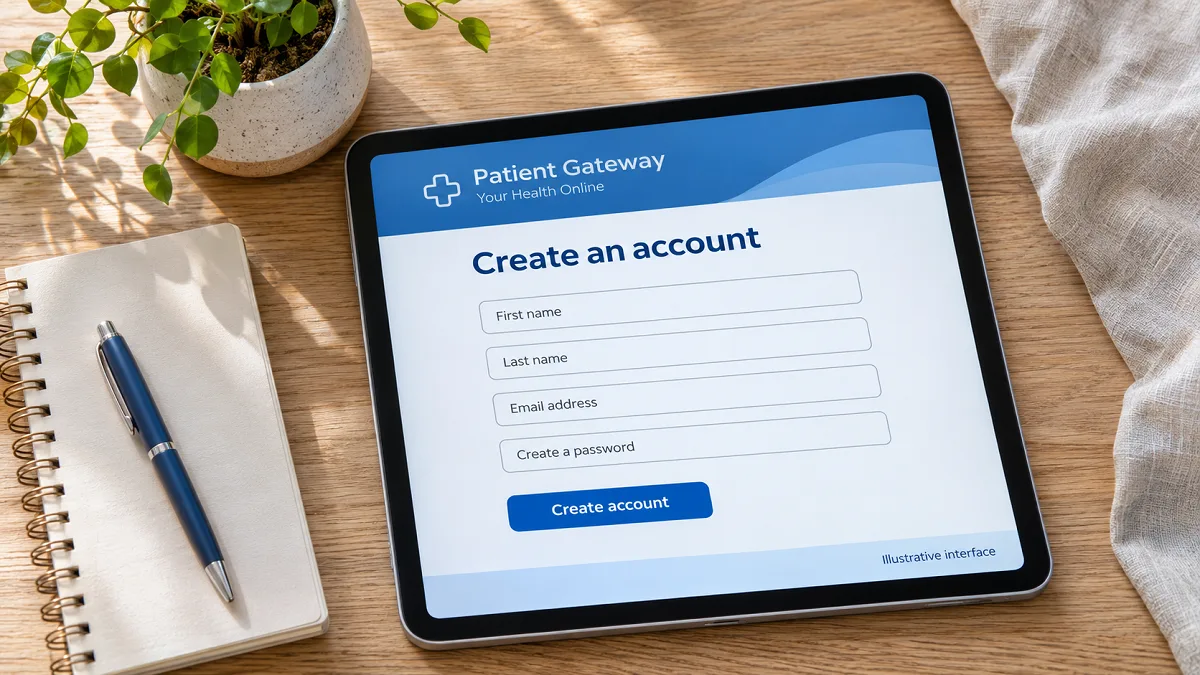
To access Patient Gateway, open the official Mass General Brigham login page and sign in with your account credentials. New users should choose the enrollment option. If you already have an account but cannot get in, start with account recovery instead of signing up again.
Patient Gateway connects patients with their health information and participating care teams. People searching for MGH Patient Gateway or Mass General Patient Gateway are usually looking for this same service, which includes Massachusetts General Hospital.
RoyalMagz is an independent publication. Enter your account information only on the official portal, never in this article’s comments.
Table of Contents
Start With the Task You Need to Finish
Before changing a password or filling out a form, identify where you are getting stuck. Opening the wrong form can send you through unnecessary steps.
| Your situation | Where to start |
|---|---|
| You have an account and know your credentials | The portal’s sign-in screen |
| You have never enrolled | The new-user enrollment option |
| You cannot remember your login | The username or password recovery option |
| You need access to a child’s records | The parent or guardian access process |
| You need help with a charge | The contact number on your billing statement |
For example, a forgotten password is an access problem. It does not mean you need to register as a new patient. Likewise, being able to sign in does not establish whether a particular bill is correct.
How to Use the Patient Gateway Login
Have your username, password, and access to your registered email or phone ready before you begin. Then work through the sign-in screen without opening several competing login tabs.
- Open the official portal linked above.
- Check that the address belongs to Mass General Brigham before entering information.
- Enter your username and password in the appropriate fields.
- Complete the verification request shown on the screen.
- Once inside, open the section relevant to your task.
The login screen also offers a passkey option. Use the method you have already configured rather than assuming every visible option applies to your account.
If a saved login appears automatically, read the username before submitting it. This is especially useful on a household computer where more than one person uses the same browser.
Understand the Two Different Codes
An activation code helps you create an account. A verification code helps confirm your identity during access. They serve different purposes, so an enrollment code should not be entered into a login verification field.
The current support FAQ says two-factor authentication became required on November 2, 2025. Older enrollment PDFs still show instructions for turning it off; follow current portal prompts instead.
How to Sign Up for Patient Gateway
Choose the enrollment route that matches what your doctor’s office has given you. An invitation link, an activation code, and self-enrollment are separate starting points.
Use information that matches your patient registration. If you are unsure how your name or contact details appear in the record, ask the office rather than guessing repeatedly.
If You Received an Invitation Link
Mass General Brigham’s enrollment instructions describe a signup link sent by text or email. Opening that link takes you to account setup, where you choose credentials and complete the requested information.
The email address may initially appear as your username. Review it carefully and follow the available options if you want to choose a different username. Create a password that you do not use for another account.
If you were not expecting an invitation, confirm it with your doctor’s office before submitting personal details. A familiar logo alone is not enough reason to trust a message.
If You Have an Activation Code
An activation code may appear in an after-visit summary or an enrollment email. Start at the official portal, choose enrollment, and follow the route for patients who already have a code.
The published instructions ask for the code and date of birth before continuing. Follow the requirements displayed on the live form, including any contact verification and password rules.
Keep the enrollment page open while checking your email for a requested code. Moving between windows is easier than restarting the process each time a message arrives.
If You Do Not Have a Code
Adults can begin self-enrollment through the new-user option. The official instructions describe entering personal details, adding a medical record number if available, and completing identity verification.
The verification process may ask questions using information held by a third-party service. Mass General Brigham explains that this process is separate from your medical record.
Read each prompt before answering. If the system cannot verify you, use the assistance route displayed on the page. Do not invent answers to get past a form.
If Enrollment Is Still Pending
Some applications need additional review. The signup page includes both a three-to-five-business-day message and an allowance of up to a week for processing, depending on the enrollment flow.
Follow the timeframe shown in your own confirmation. Keep that message so you can explain when you applied and what the system told you.
If you see a message saying an account already exists, stop creating a new one. Use recovery or contact support to restore access to the existing account.
What to Do When You Cannot Log In to Patient Gateway
Separate a forgotten credential from a missing verification message. The first problem happens before authentication; the second happens after you have reached the code step.
Forgotten Username or Password
Choose the forgotten-login option and follow the recovery prompts. If you cannot use email or mobile verification, contact technical support. Repeated failed attempts can disable an account, so avoid cycling through guesses.
After changing a password, check whether your browser still offers the old saved value. Enter the new one deliberately before deciding the reset failed.
Verification Code Not Arriving
Check spam or junk folders, request another code, or use the alternative delivery method offered. For missing texts, the official FAQ instructs users to text START to 858783 and then request the code again.
Do not share a verification code with someone offering to “fix” your account. If the listed email address or phone number is no longer yours, ask support for help.
The Page Will Not Load Properly
The login page requires JavaScript and cookies. If it displays a message about either, review the setting for that site rather than changing unrelated settings across your browser.
As a basic troubleshooting step, try a current browser and reopen the official address. If another browser works, tell support which browser failed. That observation is more useful than simply reporting that “the website is broken.”
Avoid repeatedly refreshing after submitting a form. First check whether the page shows a confirmation, an error, or a request for more information.
Using the Mobile App
The Patient Gateway app is available for iPhone and Android. The Apple listing identifies its developer as Mass General Brigham, Inc. Check the publisher and device requirements before installing an app with a similar name.
The app supports tasks such as reading results, managing appointments, messaging doctors, requesting prescription renewals, and paying bills. Installing it is separate from enrolling in the service.
Choose the device that makes the task easiest. A phone may suit a quick check, while a larger screen may be more comfortable for reading lengthy information or entering details.
If installation fails, note the compatibility message. An app-store restriction and a rejected password are different problems and need different explanations when you request help.
Getting Access to a Child’s Account
Parents and legal guardians can request Patient Care Representative access through the portal, during an appointment, or through technical support. Legal guardians must provide documentation before approval.
Mass General Brigham’s parent guidance distinguishes access for children ages 0–12 from access for teenagers. Access becomes limited at age 13 and ends automatically at 18 under this arrangement.
That means a change in what you can see may reflect an access rule rather than a broken account. Ask the care team about the appropriate arrangement instead of trying to bypass a restriction.
For an adult relative, ask about authorized representative access. Helping someone manage appointments does not mean you should create an account while pretending to be that person.
What the Portal Can Help You Do
Patient Gateway supports routine communication and record access, including appointment requests, test results, visit notes, and prescription renewal requests. Some practices also offer electronic check-in before a visit.
Use a clear subject and a specific request when messaging your care team. For example, “Question about instructions from Tuesday’s appointment” gives more context than “Help.” Keep your message focused so the recipient can understand what you need.
The portal is intended for non-urgent communication. Contact your care team directly about urgent needs; call 911 for a medical emergency. Do not wait for a portal reply when immediate help is needed.
How to Get the Right Help
For account and technical issues, call 800-745-9683 or use the official Patient Gateway support form. The form asks for identifying and contact information, an issue type, and a description of the problem.
Technical support cannot access billing information. For a billing question, use the number printed on your statement. For questions about care, contact the relevant clinical team.
Before asking for technical help, write down:
- The exact error message, without including your password or code.
- Whether you were using the website or mobile app.
- The step where the problem occurred.
- What you already tried and whether anything changed.
A useful report might say: “I reached the verification screen in my laptop browser, but the email code has not arrived. I checked junk mail and requested it again.” This gives support a clear starting point without exposing private credentials.
Start with the official portal, choose the route that matches your account status, and stop guessing when recovery fails. A precise support request can save you from repeating the same unsuccessful steps.